Wednesday, September 28, 2016

Disable default "Send an email invitation" SharePoint 2013

How to permanently disable send an email invitation when granting access? We need it by default unchecked ( send an email invitation unchecked).


Open file C:\Program Files\Common Files\Microsoft Shared\web server extensions\15\TEMPLATE\LAYOUTS\aclinv.aspx
Change the Checked="true" to Checked="false"

<div class="ms-core-form-subsection">
                <asp:CheckBox
                    runat="server"
                    id="chkSendEmailv15"
                    Checked="true"
                    class = "ms-aclinv-checkbox"
                    OnClick="UpdateSendEmailMessage()"/>
                <label for=<%SPHttpUtility.WriteAddQuote(SPHttpUtility.NoEncode(chkSendEmailv15.ClientID),this.Page);%>>
                    <SharePoint:EncodedLiteral runat="server" text="<%$Resources:wss,aclinv_SendEmailCheckboxv15%>" EncodeMethod='HtmlEncode'/>
                </label>


Note: Change on all SharePoint Servers

Thursday, July 28, 2016

Export users from group - Sharepoint

How to export users from SharePoint group with PowerShell?


Get-SPWeb https://projekt/orgit/ |
Select -ExpandProperty SiteGroups |
Where {$_.Name -EQ "Orgit-Visitors"} |
Select -ExpandProperty Users |
Select Name |
Out-File C:\NewFolder\Members.txt
#No free space after the name-for easier import
$content = Get-Content Members.txt
$content | Foreach {$_.TrimEnd()} | Set-Content Members.txt


Note: Before command locate folder where you wont to export file (txt, csv...) (cd c:\NewFolder)

Friday, July 22, 2016

Can't open Excel when a file run from task scheduler

Why can't Excel open a file when run from task scheduler?

I wrote a powershell script that opens an excel workbook and runs a macro. When I run that script from PS console, or even from command line using powershell.exe script.ps1, it jus works. When I set up a task from the windows task scheduler, it raises an exception about that excel file, saying that it either does not exist or is already in use.

Solution 1

Create these two folders:

32Bit:

C:\Windows\System32\config\systemprofile\Desktop 

64Bit:

C:\Windows\SysWOW64\config\systemprofile\Desktop

Excel needs these folders if it's not run interactively.


Solution 2

Open Component Services (Start -> Run, type in dcomcnfg)

Drill down to Component Services -> Computers -> My Computer and click on DCOM Config

Right-click on Microsoft Excel Application and choose Properties

In the Identity tab select This User and enter the ID and password of an interactive user account (domain or local) and click Ok

Note: When setting DCOM permissions, if Microsoft Excel doesn't appear in dcomcnfg try mmc comexp.msc /32

Monday, July 18, 2016

Disable\Enable SiteCollection visual upgrade - SharePoint

How to Disable\Enable SharePoint SiteCollection visual upgrade with PowerShell?

Open SharePoint Management Shell as Administrator

Disable:

$webAppUrl = "https://sbportal";
Get-SPSite -Limit All -CompatibilityLevel 14 -WebApplication $webAppUrl | % { $_.AllowSelfServiceUpgrade = $false; $_.AllowSelfServiceUpgradeEvaluation = $false; }


Enable:

$webAppUrl = "https://sbportal";
Get-SPSite -Limit All -CompatibilityLevel 14 -WebApplication $webAppUrl | % { $_.AllowSelfServiceUpgrade = $true; $_.AllowSelfServiceUpgradeEvaluation = $true; }

Tuesday, July 12, 2016

Change site collection URL in SharePoint 2013

How to change the site collection URL in SharePoint 2013? Suppose in your company, you have already created your site collection and customized everything but later, your company decides to change the Site URL. What will you do?

Open SharePoint Management Shell as Administrator

$site = Get-SPSite http://sharepoint/sites/marketing
$uri = New-Object System.Uri("http://sharepoint/sites/sales")
$site.Rename($uri)

Run IIS reset

You can only use this to rename site collection URL’s that
– Use “Wildcard inclusion” Managed Paths.
– Are Host named site collections (In which case you could also use Set-SPSiteURL)
You can’t use it to change http://sharepoint/sites/marketing to http://sharepoint/marketing (Even if the Explicit inclusion managed path exists).


Monday, July 11, 2016

Sharepoint BCS Login failed for user “NT AUTHORITY\ANONYMOUS LOGON”

Pass through authentication not working for BCS on a WebApplication which is Claims based and using Kerberos.While you try to access the External List based on User’s Identity  you received the following error Login failed for user ‘NT AUTHORITY\ANONYMOUS LOGON’


By Default Revert to Self is disabled. We will need to run following CMDlets from PowerShell to enable it


Open SharePoint Management Shell as Administrator


 $bdc = Get-SPServiceApplication | where {$_ -match "Business Data Connectivity Service"}; 
 $bdc.RevertToSelfAllowed = $true; 
 $bdc.Update();


We will need to modify External Content type by using SharePoint designer and have it use BDC Identity 


Select BDC Identity under Default and Client TAB and click on OK.

Now it will let all the users browse to the external list.


SharePoint BCS - Change default max number of rows


How to change limit of Items in External list in SharePoint?

Database Connector has throttled the response. The response from database contains more than '2000' rows. The maximum number of rows that can be read through Database Connector is '2000'. The limit can be changed via the 'Set-SPBusinessDataCatalogThrottleConfig' cmdlet.


Start SharePoint Management Shell as Administrator

$bdcProxy = Get-SPServiceApplicationProxy | where {$_.GetType().FullName -eq (‘Microsoft.SharePoint.BusinessData.SharedService.’ + ‘BdcServiceApplicationProxy’)}

$dbRule = Get-SPBusinessDataCatalogThrottleConfig -Scope Database -ThrottleType Items -ServiceApplicationProxy $bdcProxy

Set-SPBusinessDataCatalogThrottleConfig -Identity $dbRule -Maximum 1000000 -Default 5000

Default is the limit that is applied to external list. Change default number.

Tuesday, June 28, 2016

Restart Windows Service on failure and send mail - PowerShell


How to send email if a windows service stops?


In order to run a PowerShell script you first must define the program in this case you provide the full path to the PowerShell EXE.

C:\Windows\System32\WindowsPowerShell\v1.0\powershell.exe

The next you add in the remaining commands you want to execute when running the program. What I did was the following.

-command “& {C:\Skripte\ServiceAlertFromRecovery.ps1 ‘MSCRMAsyncService’ %1%}”


 Inside the script there are a few variables you will want to change. The items to change are all located near the top and are located in the “SendAlert” function.
  • $FromAddress = The from address for the email.
  • $ToAddress = You can use one or more email addresses separated by commas and all contained within the quotes.
  • $MessageSubject = This can be changed based on your needs but most likely doesn’t need any changing.
  • $MessageBody = This can be changed based on your needs but most likely doesn’t need any changing.
  • $SendingServer = The IP Address of the SMTP server you want to use.

$ComputerName = (get-wmiobject Win32_Computersystem).name
$ServiceName = $args[0]
$ServiceDisplayName = (Get-Service $ServiceName).DisplayName
$TimesRestarted = $args[1]

Get-Service $ServiceName
$Status = (Get-Service $ServiceName).Status
If ($Status -ne "Running")
{
 Start-Service $ServiceName
}

function SendAlert
{
  $FromAddress = "ServiceFailure@domain.com"
  $ToAddress = "emailaddr@domain.com"
  $MessageSubject = "Service Failure for $ComputerName"
  $MessageBody = "The $ServiceDisplayName ($ServiceName) service on $ComputerName has restarted $TimesRestarted times in the last 24 hours. Please review server event logs for further information."
  $SendingServer = ""

  ###Create the mail message and add the statistics text file as an attachment
  $SMTPMessage = New-Object System.Net.Mail.MailMessage $FromAddress, $ToAddress, $MessageSubject, $MessageBody

  ###Send the message
  $SMTPClient = New-Object System.Net.Mail.SMTPClient $SendingServer
  $SMTPClient.Send($SMTPMessage)
}

SendAlert 
 
 
Download script 


Ref: http://it-erate.com/restart-windows-service-failure-powershell-script/


Revocation information certificate for this site not available. Do you want to proceed?

Sometimes, when you visit secure websites, you may receive the message "Revocation information for the security certificate for this site is not available. Do you want to proceed?" You need to adjust some of your settings to get rid of this message.


Disable the option to check for server certificate revocation on Internet Explorer

To disable server certificate revocation:
1. Open Internet Explorer.
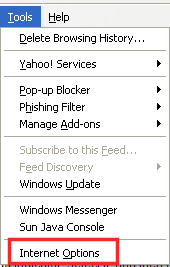
2. On the Tools menu, click Internet Options.

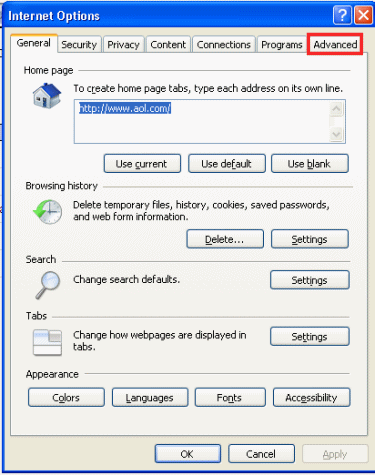
3. Click the Advanced tab.

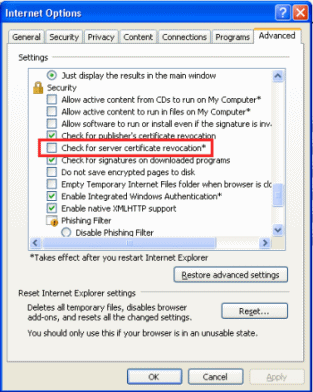
4. Scroll down to the Security section, and then uncheck the Check for server certificate revocation check box.

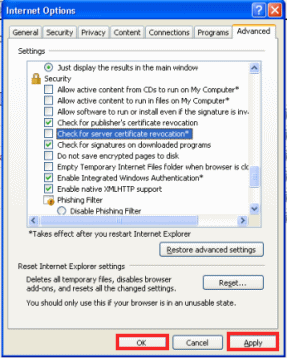
5. Click Apply, and then click OK.

6. Close the Internet Explorer window.

Thursday, March 24, 2016

Make SharePoint List Column (Form Field) Read Only - PowerShell

How to make SharePoint list column read only with PowerShell?

Start SharePoint Management Shell as Administrator

Add-PSSnapin Microsoft.SharePoint.PowerShell -ErrorAction SilentlyContinue
#Get the Web
$web = Get-SPWeb http://SiteName
#Get the List
$List = $Web.Lists["ListName"]
#Get the Field
$Field = $List.Fields["FieldName"]
#Set the field to Read only
$Field.ReadOnlyField = $true
$Field.Update()

Thursday, February 25, 2016

ILM Configuration: The miissku.exe process exited with error code -2146232832. Error. - SharePoint 2013


ILM Configuration: The miissku.exe process exited with error code -2146232832. Error.

ILM Configuration: The ValidateMiisEncryptionKey process returned False.
 

UserProfileApplication.SynchronizeMIIS: Failed to configure MIIS pre database, will attempt during next rerun.

Synchronization database is already initialized. Importing the encryption key for the database into the registry


Run as Administrator SharePoint Management Shell


$sync_db = "Sync DB"
$ups_service_app_name = "User Profile Service Application"


net stop sptimerv4
$syncdb=Get-SPDatabase | where {$_.Name -eq $sync_db}
$syncdb.Unprovision()
$syncdb.Status='Offline'
$ups = Get-SPServiceApplication  | where {$_.Displayname -eq $ups_service_app_name }
$ups.ResetSynchronizationMachine()
$ups.ResetSynchronizationDatabase()
$syncdb.Provision()
net start sptimerv4

Start the UserProfileSyncService again


Ref: http://blogs.technet.com/b/sp/archive/2013/05/29/http-www-blogger-com-blogger-g-blogid-8070685728411204795-editor-target-post-postid-706076184673021818-onpublishedmenu-overviewstats-onclosedmenu-overviewstats-postnum-23-src-postname.aspx

Friday, February 5, 2016

Specified host is not present in cluster - Distributed cache


Use-CacheCluster
Get-AFCacheHostConfiguration -ComputerName ComputerName -CachePort "22233"


If you receive a message stating “Specified host is not present in cluster” one of two things occurred; you misspelt the ComputerName (or port), or the computer is in fact not present in the cluster.


Re-registering a computer is simple enough, from that Management Shell, execute the following cmdlet:


Register-CacheHost –Provider "ProviderName" –ConnectionString "ConnectionString" –Account “NT Authority\Network Service” –CachePort 22233 –ClusterPort 22234 –ArbitrationPort 22235 –ReplicationPort 22236 –HostName "ComputerName"

Note: Provider and ConnectionString parameters are located in the HKLM registry hive under Software\Microsoft\ AppFabric\v1.0\Configuration


Again start command:

Use-CacheCluster
Get-AFCacheHostConfiguration -ComputerName ComputerName -CachePort "22233"

Wednesday, December 23, 2015

Freeze header for title in SharePoint 2013 List/Library

If you have a long list in your site, when you scroll down then the headers are not appearing. That's why every time users should scroll-up and down. How to freeze header for title in SharePoint 2013 List/Library?


Before.


1. Access the library/list.
2. Then click on Edit Page.
3. Then Add an App 'Content Editor Web Part'


4. Then click on Content Editor Web Part and add the below script by clicking on 'Edit Source' from the Ribbon.
5. After you have paste the below code click on Page Tab click on Stop Editing.
6. That's it!


After.


Script:


<script src="https://ajax.googleapis.com/ajax/libs/jquery/1.11.0/jquery.min.js" type="text/javascript"></script>

<script type="text/javascript">

jQuery(document).ready(function(){

stickyHeaders()

})

function stickyHeaders(){

if( jQuery.inArray( "spgantt.js", g_spPreFetchKeys ) > -1){

SP.SOD.executeOrDelayUntilScriptLoaded(function () {

findListsOnPage();

}, "spgantt.js");

} else {

findListsOnPage();

}

$(window).bind('hashchange', findListsOnPage);

}

function findListsOnPage() {

var lists          = $('.ms-listviewtable')

var quickEditLists = [];

var listViews      = [];

$(lists).each(function(i){

if($(this).find('div[id^="spgridcontainer"]').length > 0 ){

quickEditLists.push($(this))

} else if( $(this).hasClass("ms-listviewgrid") == false ) {

listViews.push($(this))

}

})

if(quickEditLists.length > 0) {

SP.GanttControl.WaitForGanttCreation(function (ganttChart) {

initializeStickyHeaders(quickEditLists, "qe");

});

}

if(listViews.length > 0) {

initializeStickyHeaders(listViews, "lv");

}

}

function initializeStickyHeaders (lists, type) {

var top_old        = [], top_new        = [],

bottom_old     = [], bottom_new     = [],

stickies       = [], headers        = [],

indexOffset    = 0 ;

var style = "position:fixed;" +

"top:65px;" +

"z-index:1;" +

"background-color:beige;" +

"box-shadow:3px 3px 5px #DDDDDD;" +

"display:none"

$(window).unbind('resize.' + type);

$(window).bind  ('resize.' + type, updatestickies );

$('#s4-workspace').unbind('scroll.' + type);

$('#s4-workspace').bind  ('scroll.' + type, updatestickies );

$(lists).each(function(){

headers.push($(this).find($('.ms-viewheadertr:visible')))

});

$(headers).each(function (i) {

var table = $(this).closest("table");

if(table.find("tbody > tr").length > 1) {

table.parent().find(".sticky-anchor").remove()

table.parent().find(".sticky").remove()      

var anchor = table.before('<div class="sticky-anchor"></div>')

stickies.push($(this).clone(true,true).addClass("sticky").attr('style', style).insertAfter(anchor))

var tbodies = $(this).parent("thead").siblings("tbody")

if(tbodies.length > 1) {

tbodies.bind("DOMAttrModified", function(){

setTimeout(function(){

$('#s4-workspace').trigger("scroll", true)

}, 250)

})

}

} else {

headers.splice(i-indexOffset,1)

indexOffset++;

}

})

//Do it once even without beeing triggered by an event

updatestickies();

function updatestickies (event, DOMchangeEvent) {

$(headers).each(function (i) {

if(DOMchangeEvent) {

width();

return false;

}

function width() {

stickies[i].width(headers[i].width()).find('th').each(function (j) {

$(this).width(headers[i].find('th:nth-child(' + (j+1) + ')').width())

})

}

top_old[i]    = top_new[i]

top_new[i]    = Math.round($(this).offset().top - 45)

bottom_old[i] = bottom_new[i]

bottom_new[i] = Math.round(top_new[i] - 30 + $(this).closest('table').height())

stickies[i].offset({

left: Math.round(headers[i].closest("div[id^=WebPartWPQ]").offset().left)

});

if(top_old[i] >= 0 && top_new[i] <= 0 ||

bottom_old[i] <= 0 && bottom_new[i] >= 0 ||

top_old[i] === undefined && bottom_old[i] === undefined && top_new[i] < 0 && bottom_new[i] > 0 ) {

width();

stickies[i].fadeIn();

} else if (top_old[i] <= 0 && top_new[i] >= 0 || bottom_old[i] >= 0 && bottom_new[i] <= 0 ) {

stickies[i].fadeOut();

}

})

}

}

</script>


Reference: This code is refered from the below article.
http://tussharonoffice365.blogspot.com/2014/05/how-to-freeze-header-for-title-in.html

Thursday, November 5, 2015

Term Store Management - Submission Policy grayed out


In the Submission Policy section, specify whether you want the term set to be Closed or Open. If you want the term set to be updated only by those people who have permission to update managed metadata, select Closed. If you want all users to be able to add new terms to the term set when they update the value for Managed Metadata columns mapped to this term set, then select Open.


Submission Policy grayed out.


Open SharePoint Management Shell as Administrator and run next command:

 
#Connect to Central Admin
$Session = new-object Microsoft.SharePoint.Taxonomy.TaxonomySession(“Central Admin URL”)

#Connect to Managed Metadata Service
$Store = $Session.TermStores[“Managed Metadata Service Name”]
#Get the group
$Group = $Store.Groups[“Group Name”];
#Get the Term Set
$TermSet = $Group.TermSets[“Term Set Name”];
#Update the Is Open property
$TermSet.IsOpenForTermCreation = $false;

#Commit changes
$Store.CommitAll();


Example:

#Connect to Central Admin
$Session = new-object Microsoft.SharePoint.Taxonomy.TaxonomySession(“http://dev6:55555”)

#Connect to Managed Metadata Service
$Store = $Session.TermStores[“Managed Metadata Service”]
#Get the group
$Group = $Store.Groups[“System”];
#Get the Term Set
$TermSet = $Group.TermSets[“Keywords”];
#Update the Is Open property
$TermSet.IsOpenForTermCreation = $false;

#Commit changes
$Store.CommitAll();
 

Monday, November 2, 2015

Inheriting parent site Theme in sub-sites - SharePoint 2013

How to inherit parent site theme on subsites?

Theme Inheritance – Publishing Sites


Site Settings > Master Page, under the Theme section of that page check "Reset all subsites to inherit the theme of this site"


Theme Inheritance – Non-Publishing Sites

Open SharePoint Management Shell as Administrator and start next command:
$url = "http://your-site"
$site = Get-SPSite -Identity $url
Write-Host "RootWeb Theme: " site.RootWeb.ThemedCssFolderUrl
foreach ($web in $site.AllWebs) {
  Write-Host "Web Title: " $web.Title
  Write-Host "Web Theme: " $web.ThemedCssFolderUrl
  $web.ThemedCssFolderUrl = $site.RootWeb.ThemedCssFolderUrl
  $web.Update()
  $web.Dispose()
}
$site.Dispose();

Wednesday, October 14, 2015

Office Web Apps Server 2013 - machines reported as Unhealthy

After you configure Web Apps 2013 farm you found the Web Apps Machine is Unhealthy


In order for IIS to understand .svc files, and not use the Static file handler, you need to install HTTP Activation for .NET Framework 4.5 WCF Services on your WAC machines. It can be done using the following PowerShell command:

Add-WindowsFeature NET-WCF-HTTP-Activation45


Once the feature is installed, there is no need for any server restart, you should see that your machines are reported as Healthy. Remember it can take up to 10-20 minutes. You can sometimes speed up the health reporting a bit by restarting the WAC Service:
 

Wednesday, October 7, 2015

Enable feature in SharePoint 2013 - PowerShell

How to activate SharePoint feature using powershell script?


Open SharePoint Management Shell as Administrator

Enable-SPFeature FeatureID -url http://url
Optional [-Force]

To get Feature ID run the command Get-SPFeature


Example:

Active Site Collection Publishing Feature

Enable-SPFeature f6924d36-2fa8-4f0b-b16d-06b7250180fa -url http://webApplication/siteColection/

Friday, October 2, 2015

Remove property from Property Bag with PowerShell

How to remove properties from multiple places in SharePoint with powershell script?

For Web Application

$web = Get-SPWeb <url>
$web.Properties.Remove('test') // this is a key
$web.Update()
$web.Properties

For Farm

$web = Get-SPFarm
$web.Properties.Remove('test') // this is a key
$web.Update()
$web.Properties


Powershell to get Property bag for Farm, Web App or Site Collection


Wednesday, September 23, 2015

Excluding Sites from Search - SharePoint 2013

Instead of setting each subsites search visibility property manually, use Powershell to exlude SharePoint sites from search.

Content from that site and all of its subsites will not appear in search results.


$siteUrl = "http://NameOfSite"

Get-SPSite $siteUrl | Get-SPWeb -Limit all | ForEach-Object {
Write-Host “`tProcessing Web: $($_.ServerRelativeUrl)…” -ForegroundColor White
 if (!$whatIf)
 {
 Write-Host “Setting properties on Web:” $_.Title -ForegroundColor White
 $_.NoCrawl = $true
 #Update the web
 $_.Update()
 }
 else
 {
 Write-Host “Reading properties on Web:” $_.Title -ForegroundColor White
 Write-Host “No crawl enabled: “$_.NoCrawl
 }
 }
 $site.Dispose()

Start User Profile Synchronization Service using PowerShell

How to start User Profile Synchronization Service using PowerShell?


Open SharePoint Management Shell.

Get-SPServiceInstance | Where-Object {$_.TypeName -eq 'User Profile Synchronization Service'}

Using this powershell commandlet you can get GUID details.


Start-SPServiceInstance –Identity  GUID of the Service application


Sometimes your User Profile Synchronization service might stuck in “Starting” due to some issues in Synchronization. To Stop that service, use the below command

Stop-SPServiceInstance –Identity  GUID of the Service application

Wednesday, September 16, 2015

Add different Colors to Calendar Overlay

How to add different Colors to Calendar Overlay in SharePoint?


Edit page.


Add web part, Content Editor.


Edit Source.


Paste text


<style type="text/css">
.ms-acal-color1{
   background-color:#1BBA61;
}
.ms-acal-color2{
   background-color:#C0362C;
}
.ms-acal-color3{
   background-color:#816C5B;
}
.ms-acal-color4{
   background-color:#668D3C;
}
.ms-acal-color5{
   background-color:#007996;
}
.ms-acal-color6{
   background-color:#1BECDC;
}
.ms-acal-color7{
   background-color:#253529;
}
.ms-acal-color8{
   background-color:#288054;
}
.ms-acal-color9{
   background-color:#AEA9B8;
}
</style>


You can choose the color from http://www.color-hex.com/

Friday, September 11, 2015

Start and Stop the Distributed Cache Service PowerShell

How to start and stop Distributed Cache Service using SharePoint Management Shell?


# Start the Distributed Cache service by using Windows PowerShell     
     
$InstanceName = "SPDistributedCacheService Name=AppFabricCachingService";           
$serviceInstance = Get-SPServiceInstance | ? {($_.service.tostring()) -eq $instanceName -and ($_.server.name) -eq $env:computername}           
$serviceInstance.Provision();           
            
# Stop the Distributed Cache service by using Windows PowerShell       
   
$instanceName = "SPDistributedCacheService Name=AppFabricCachingService"           
$serviceInstance = Get-SPServiceInstance | ? {($_.service.tostring()) -eq $instanceName -and ($_.server.name) -eq $env:computername}           
$serviceInstance.Unprovision();


Thursday, September 10, 2015

Delete Search Service Application - SharePoint 2013

Can't delete SharePoint search service application from GUI? Here is a solution.


POWERSHELL

Run SharePoint Management Shell as Administrator.

$spapp = Get-SPServiceApplication -Name "Name Search Service Application"
Remove-SPServiceApplication $spapp -RemoveData


Or

Get-SPServiceApplication

$P = Get-SPServiceApplication -identity PutYourSearchApplicationGuidHere
Remove-SPServiceApplication $P
Remove-SPServiceApplication $P -RemoveData


STSADM


Open up a Command Prompt using Admin Rights

Change directory to: cd  C:\Program Files\Common Files\microsoft shared\Web Server Extensions\15\BIN

Type the STSADM command

stsadm -o deleteconfigurationobject -id [Search Service Application GUID ID]

Thursday, September 3, 2015

Cannot change Preferred Search Center in My Site Settings - SharePoint 2013

You can't change the search center for SharePoint My Site from the UI. The solution would be in powershell.


Open and run SharePoint Management Shell as Administrator.

Run next command

$ssa = Get-SPEnterpriseSearchServiceApplication "Search Service Application"
$ssa.SearchCenterUrl = "http://url/site/searchcentername/Pages/"
$ssa.Update

"Search Service Application" - name of  Search Service Application

When done do an IIS reset and try searching from your mysite.


Tuesday, September 1, 2015

My Site creation stuck at “We’re almost ready" SharePoint

The personal site managed path created on the web application hosting the Personal Site site collections, so why can't it find the correct managed path.  Well, in fact the User Profile application is not looking at the list of managed paths on the web application, it’s looking at the list of managed paths defined on the SPContentService.  

To find out what managed paths you have defined on your Content Service, you can run this bit of PowerShell from a SharePoint PowerShell console window:

Get-SPManagedPath -HostHeader


New-SPManagedPath -RelativeURL "personal" -HostHeader


To verify the command added the managed path correctly, re-execute the following PowerShell from a SharePoint console window:

Get-SPManagedPath –HostHeader